

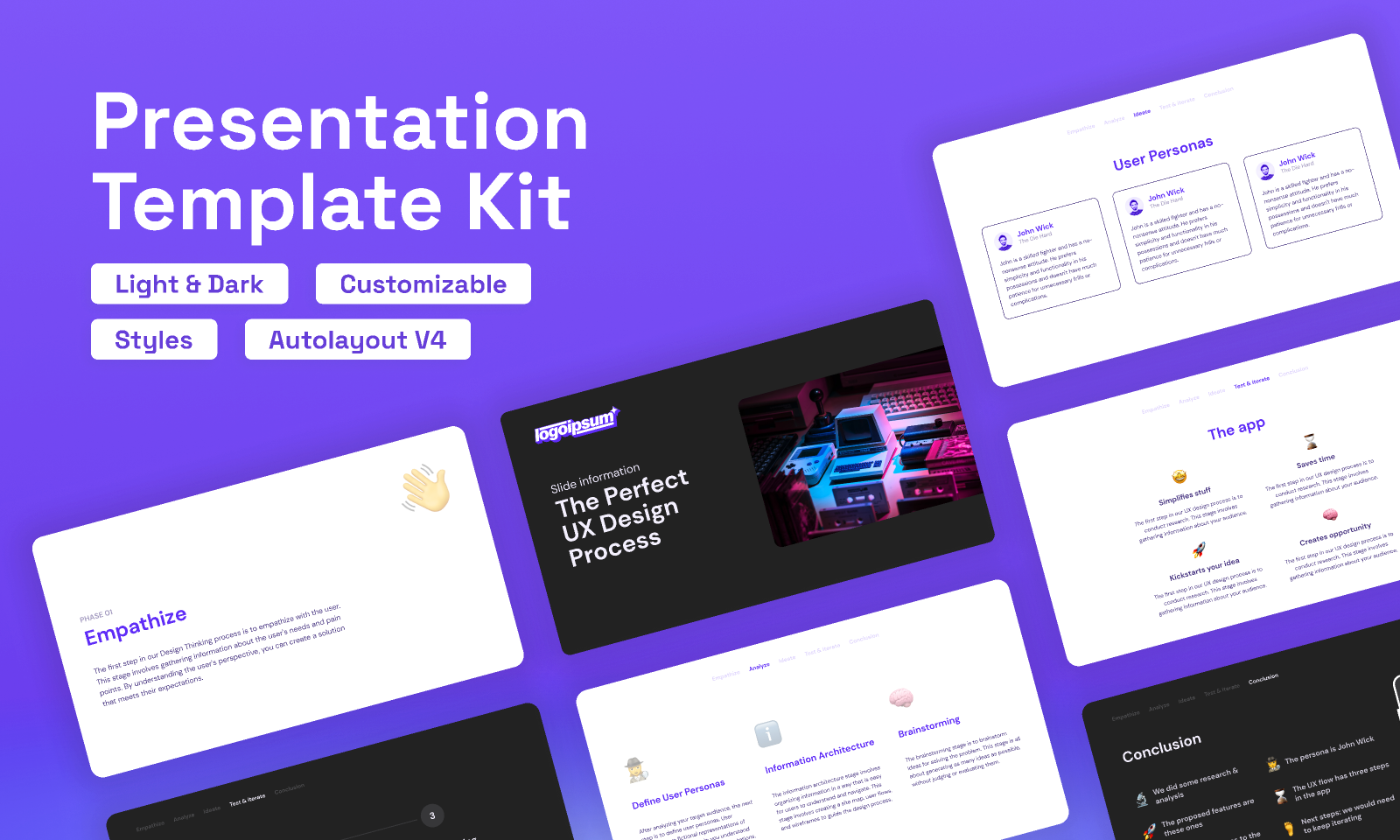
Creating a presentation can sometimes feel like standing in front of a blank canvas with no idea where to start. We all know the feeling: hours spent gathering content, only to realize the slides feel flat or uninspiring. But the truth is, presentation design is not just about putting words on a slide. It is about creating a story that your audience can connect with, making information easier to digest, and leaving a lasting impression. Imagine walking into a room where the visuals immediately grab attention, the flow keeps everyone engaged, and each slide feels purposeful. That is the magic of effective presentation layout.
The good news is that you do not need to be a graphic designer or spend days perfecting your slides. Tools like Canva, PowerPoint templates, Slidesgo, and Google Slides provide countless options to elevate your presentations. By understanding a few simple hacks and adopting the right presentation templates, you can turn an ordinary slideshow into an engaging experience. Even the best PPT templates free download resources can save you time while ensuring professional results. Small tweaks in layout, typography, and imagery can dramatically improve the way your message is perceived. This article explores practical hacks to help you instantly impress your audience and boost your confidence in delivering presentations.
Presentation Design: Use Consistent Visuals
One of the easiest ways to make your presentation layout look professional is by maintaining visual consistency throughout your slides. Consistency goes beyond choosing colors that look good together. It includes using the same font styles, font sizes, icons, and image styles on every slide. When your slides have a uniform appearance, it creates a smooth visual flow, making it easier for your audience to focus on your message rather than get distracted by random design changes.
For example, if your title text is bold and your body text is in a specific font on the first slide, keep that style for all subsequent slides. If you use round icons or a particular illustration style on one slide, continue that style throughout the presentation. Presentation templates from platforms like Canva, Slidesgo, or Google Slides are especially helpful because they come with pre-designed layouts that maintain this kind of consistency automatically.
Consistent visuals also reinforce your personal or brand identity. Using a fixed color palette, for instance, can subtly communicate professionalism and attention to detail. Similarly, consistent placement of text boxes, headers, and images makes it easier for your audience to anticipate where to look next, reducing cognitive load and improving information retention. In short, visual consistency not only makes your slides look polished but also keeps your audience engaged, letting them absorb your ideas without distraction.
Focus on Simplicity
Simplicity is one of the most powerful tools in presentation design. A cluttered slide filled with long paragraphs, excessive bullet points, or too many visuals can overwhelm your audience and dilute your message. Instead, aim to communicate each idea as clearly and concisely as possible. A slide should generally convey a single concept, allowing your audience to grasp the point quickly without getting lost in unnecessary details.
Using clean layouts, ample white space, and a limited number of colors and fonts can make your slides visually appealing and easier to read. PowerPoint templates, Google Slides, and Canva offer pre-designed layouts that emphasize minimalism while keeping your presentation professional and engaging. Choosing high-quality visuals over text-heavy slides can also help convey your message more effectively. For instance, instead of listing multiple statistics in a paragraph, use a simple chart or infographic that your audience can understand at a glance.
Simplicity does not mean boring. It means being intentional with every element on the slide, ensuring each piece supports your message. By focusing on simplicity, you guide your audience through your presentation without distractions, making your ideas more memorable and leaving a stronger impact. The less crowded your slides are, the more confident and in control you will feel when presenting.
Incorporate Storytelling
People remember stories better than facts alone. Build a narrative through your slides to guide your audience from one point to another. Start with a compelling introduction, present the problem, offer solutions, and end with a strong conclusion. Presentation templates that allow for visual storytelling can enhance this process and help your audience remain engaged throughout.
FAQs
What is presentation design?
Presentation layout is the art of creating slides that effectively communicate ideas visually. It combines layout, typography, colors, imagery, and storytelling to ensure the audience understands and remembers the content. Well-designed presentations make information easier to digest and more engaging.
What is the 10 20 30 rule of PowerPoint presentations?
The 10 20 30 rule suggests that a presentation should have no more than 10 slides, last no longer than 20 minutes, and use a font size of at least 30 points. This rule ensures clarity, keeps the audience engaged, and prevents overcrowding slides with too much information.
What is the 7 7 7 presentation rule?
The 7 7 7 rule recommends using no more than seven words per line, seven lines per slide, and keeping the total presentation to around seven minutes. It is a guide for concise and impactful presentation layout, making slides easier to read and follow.
What are the three rules of presentation design?
The three main rules include clarity, consistency, and visual hierarchy. Clarity ensures the message is easy to understand, consistency keeps the design uniform across slides, and visual hierarchy directs the audience’s focus to the most important elements.
Is presentation design a skill?
Yes, presentation layout is a valuable skill. It combines creativity, communication, and technical ability to create effective slides. Developing this skill allows you to deliver compelling messages, engage audiences, and make information visually appealing.
Leverage Visual Hierarchy
Visual hierarchy is a key principle in presentation layout that guides your audience’s attention to the most important information first. By thoughtfully arranging elements such as text, images, and graphics, you can create a natural flow that helps viewers understand your message quickly and clearly. Without visual hierarchy, even the most valuable content can get lost in a slide that looks chaotic or confusing.
There are several ways to establish a strong visual hierarchy. Size is one of the simplest and most effective tools. Larger fonts naturally draw attention to titles or key points, while smaller text is used for supporting information. Color and contrast can also direct the eye; for instance, using a bright accent color for critical numbers or statements makes them stand out against a neutral background. Placement matters too. Our eyes tend to scan slides from top left to bottom right, so placing the most important elements where they are likely to be noticed first ensures your message lands effectively.
Platforms like Canva, Slidesgo, PowerPoint templates, and Google Slides often include layouts designed with visual hierarchy in mind. These templates automatically position headings, subheadings, images, and text blocks in ways that are visually balanced and easy to follow. Using these layouts can save time while making your slides appear polished and professional. By leveraging visual hierarchy, you are not just making your slides look better; you are creating a roadmap for your audience’s attention, ensuring that your ideas are understood, remembered, and appreciated.
Use High-Quality Images and Icons
Images can make or break your slides. Low-resolution visuals or irrelevant graphics can reduce the impact of your presentation layout. Choose clear and relevant visuals, or use platforms offering best PPT templates free download, which often include professional graphics and icons. This adds credibility and keeps your slides visually appealing.
Presentation Design: Engage With Interactive Elements
Adding charts, graphs, or clickable elements can make presentations interactive. Google Slides and PowerPoint templates support these features, allowing you to showcase data dynamically. Interactive content not only keeps the audience interested but also helps in illustrating complex ideas more effectively.
In the end, mastering presentation design does not have to be complicated. By using consistent visuals, simple layouts, high-quality images, and storytelling techniques, you can instantly create slides that captivate your audience. Leveraging tools like Canva, PowerPoint templates, Slidesgo, and Google Slides, along with best PPT templates free download resources, saves time while delivering professional results. Small but thoughtful design choices can transform any presentation into a memorable experience that keeps your audience engaged and impressed.